
Unified Enterprise Assistant
One workspace for every system your company runs on
MyGenie connects your Google account and your company's enterprise systems into a single conversation. Ask in plain English — MyGenie reads, drafts, and acts across Gmail, Calendar, Drive, CRM, and your service desk without you ever changing tabs.
One
workspace
Many
connected systems
Zero
tab switching
For everyone in the company
One assistant, every system your team already uses
Employees never learn a new tool for each system. They ask MyGenie, and it opens a floating workspace for the answer — so several pieces of work can stay open side by side.
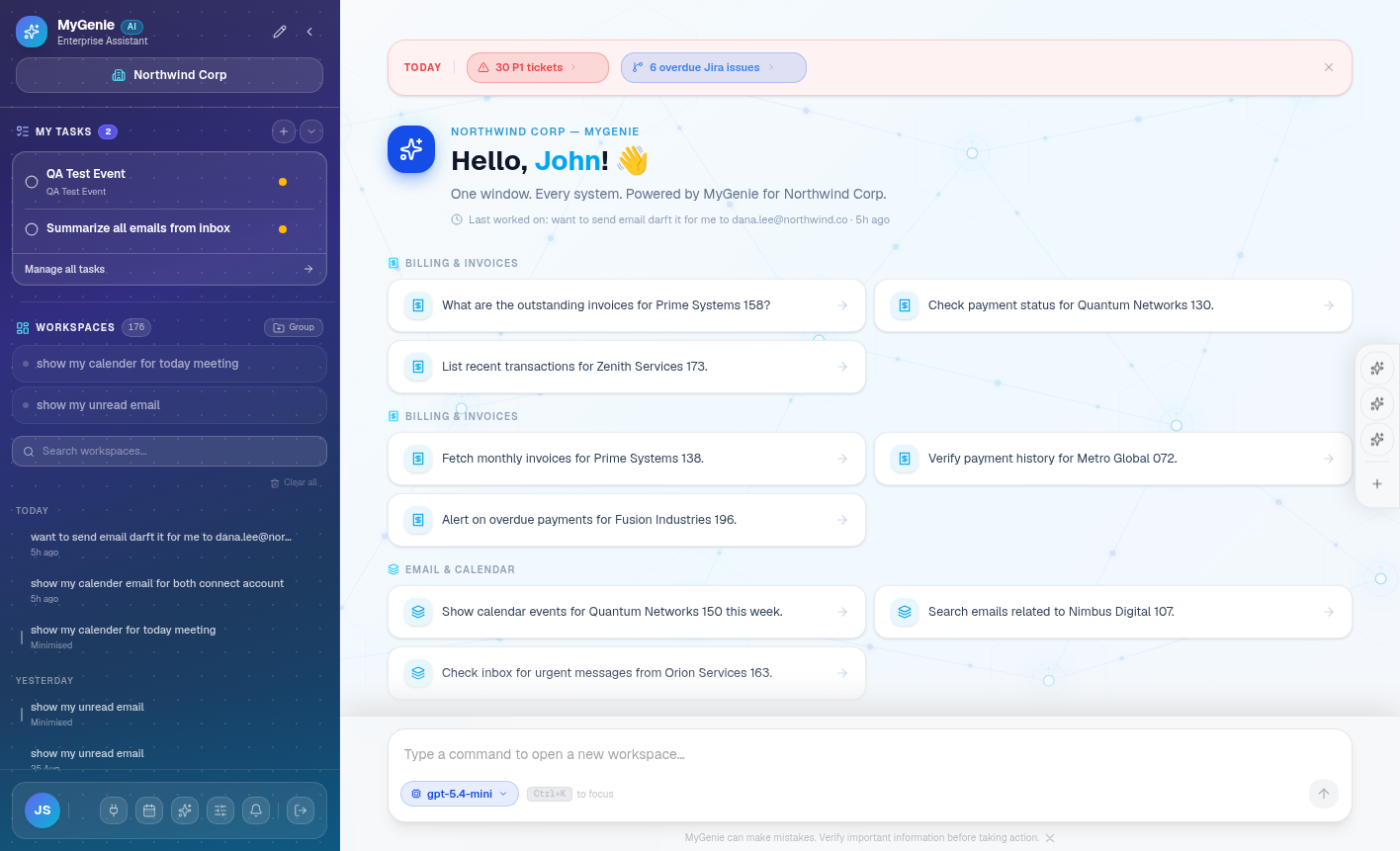
Start from one command bar
Every session opens on a single command bar with suggestions drawn from the systems your administrator connected. Type a request in plain English and MyGenie opens a workspace to answer it.
- Suggestions are generated from your connected systems, not a fixed list
- Pick the AI model per request from the command bar
- Open tasks and recent workspaces stay in the left sidebar
How companies roll it out
Connected once, governed centrally, used by everyone
Step 1
An administrator connects your systems
Your company administrator connects Google Workspace and the enterprise systems your teams rely on — once, for the whole organisation. Employees never handle credentials themselves.
Step 2
Your team just asks
Anyone in the workspace types a request in plain English. MyGenie decides which connected system can answer it, calls that system, and opens a workspace window with the result.
Step 3
Permissions decide what each person sees
Roles and permissions set by your administrator govern which systems and actions each person can reach, so the same assistant returns different results for different teams.
One console to configure MyGenie for your whole company
Admins onboard the company, connect its enterprise systems, and control exactly what employees can access — no engineering work required.
User & role management
Invite employees, assign roles, and control who can access which connectors and AI models from a single client admin console.
Connector management
Turn on the enterprise systems your company uses — CRM, Jira, Dynamics 365, NetSuite, ServiceNow — and monitor each connection's health from one place.
AI model selection
Choose which AI models are available to your workspace and configure them to match your company's needs.
Governance & guardrails
Set data protection policies and restricted-topic guardrails that apply across every employee conversation.
Everything your company runs on, in one workspace
MyGenie connects to your Google account and the enterprise systems your company already depends on — each conversation can draw on all of them at once.
Google Workspace
Read, search, draft, and act across your everyday tools.
Enterprise systems
Turned on by your admin, scoped to your company's data.
Your data stays yours
MyGenie never sells or shares your data with third parties. Access tokens are encrypted at rest, and you can disconnect any account at any time.
You're always in control
Every action that reads or writes to a connected account is triggered by a message you send — see our Privacy Policy and Terms of Service for the full details.
Bring your company's tools into one AI workspace
Sign in with your Google account to get started, or ask your admin to set up MyGenie for your company.